Why anime needs its own video upscaler
Anime and cartoons are built from clear outlines and large areas of flat color. General-purpose AI upscalers are trained mostly on photographs, so they tend to invent texture: grain in skies, fuzz along hair, a slightly painted look on faces. An anime video upscaler needs the opposite behaviour. It should make lines thin, dark and continuous, keep color areas perfectly flat and remove the compression noise that clusters around every edge in a low-bitrate episode.
This page uses realesr-animevideov3, the Real-ESRGAN model trained specifically for anime video. It is also about twice as fast as the general model, which matters when a single episode has more than 30,000 frames.
How to upscale anime video
- Drop an episode or clip into the tool. MKV, MP4, WebM and MOV work if your browser can decode the video codec.
- "Anime / cartoon" is already selected. Choose 1080p for most screens or 4K for a 4K TV.
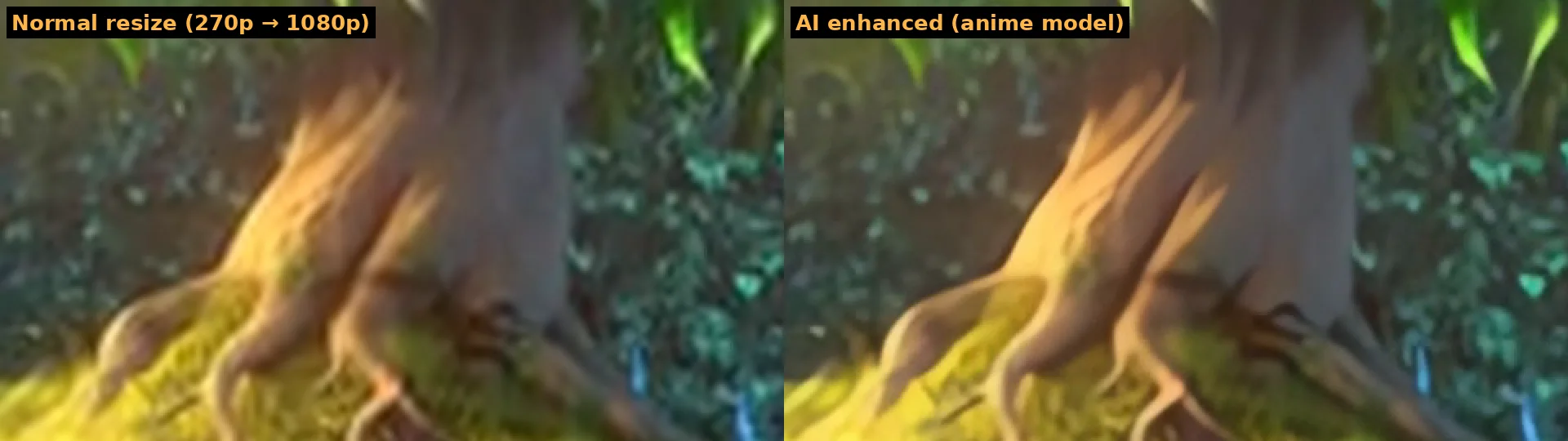
- Preview 3 seconds and drag the divider: lines should look cleaner and color areas smoother than the plain resize.
- Start the full upscale, keep the tab open, and download the MP4 with the original audio.
What the anime video upscaler fixes
| Problem | Result |
|---|---|
| Blurry 480p or 720p episodes | Sharp 1080p line art |
| Blocky compression in dark scenes and gradients | Smooth, flat color areas |
| Fuzzy or broken outlines | Thin, continuous lines |
| Hard-to-read burned-in subtitles | Crisper text edges |
| Grainy film-era anime | Grain reduced; if you love the grain, the general model keeps more of it |
Anime model or general model?
Use the anime model for 2D animation, cel-shaded 3D, cartoons, motion graphics and screen recordings with flat interfaces. Use the general "Real footage" model for live action, realistic 3D renders and photographic content. If you are not sure, run the preview with each model; it only takes a few seconds and shows the real result on your clip.
Speed: how long does an episode take?
Measured in Chrome on an NVIDIA RTX 4060 Ti, the anime model upscales 270p to 1080p at about 8–9 frames per second including decoding and encoding, and 480p sources at roughly 5–8 frames per second. A 24-minute episode at 24 fps has about 34,500 frames, so plan on one to two hours per episode on that kind of card, and longer on laptops with integrated graphics. You can keep using your computer for light tasks, but keep the tab visible, because browsers slow down background tabs.
Private by design
Fan-subbed episodes, personal recordings and work-in-progress animation stay on your machine. The anime video upscaler runs entirely in the browser through WebGPU; there is no upload, no account and no server copy. The output is a standard H.264 MP4 that plays in any media player.
Tips for anime upscaling
- Start from the best available source; a 720p release beats an upscaled 480p one.
- 1080p is the sweet spot for most anime; 4K takes about four times longer.
- For smoother pans, run frame interpolation afterwards, keeping in mind that many fans prefer anime's original timing.
- Live-action clips? Use the video upscaler with "Real footage".